Loading component...
At a glance
Macros have been automating Excel for decades. If you have not used macros before, now may be a good time to start using them with the support of AI and extensive online resources.
Contrary to what you may have read on social media, Excel macros are alive and thriving.
Useful macros
Macros can be used for a multitude of tasks. This article focuses on six short macros that save time and typing.
Excel macros are written in Visual Basic for Applications (VBA). The companion Excel file has all the VBA code.
The companion video demonstrates how to use the macros and explains each one in detail. It also shows how to link the macros to icon on the Quick Access Toolbar, so you can run a macro by clicking an icon.
A few notes before getting started
Macro warning: Running a macro clears Excel’s Undo list. This has two implications:
- The macro cannot be undone.
- Anything done before the macro was run cannot be undone.
As a precaution, save the file before running the macro. If the macro does not work as expected, close the file without saving. Another option is to use a copy of the file to test the macro.
File protection: These macros work on unprotected sheets and files. If a file or sheet is protected, the macros may not work and could return an error.
AI tip: Most AI systems can write useful Excel macro code. They can also explain existing macro code.
Macro code: In the macro code that follows, the green lines of text are called “comments” and are used for explanation purposes. The green text does not do anything.
Selection: Some of the macros require the user to select a range before running the macro. The Selection keyword is used in the VBA code to refer to whatever is selected prior to running the macro.
1. Unhiding all the sheets
It is easy to hide a group of sheets in Excel. Hold the Ctrl key down and click a few sheet tabs. Right click one of the chosen sheet tabs and choose Hide.
It requires a click per sheet to unhide multiple sheets. This macro (Figure 1) unhides all the sheets in the current file in a single click.
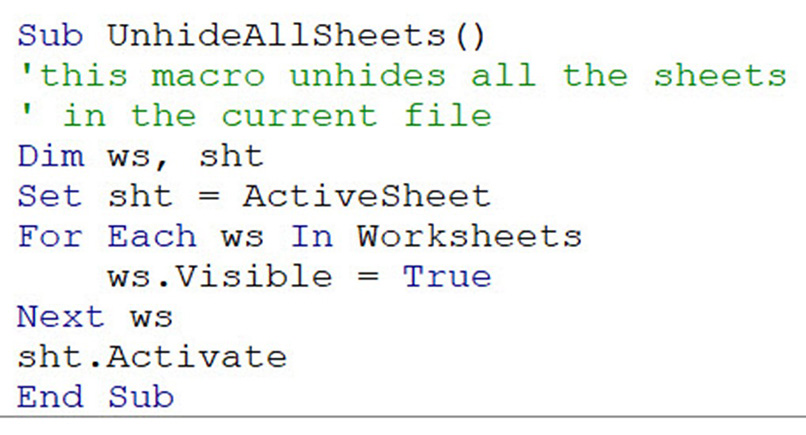
Explanation: The Dim statement defines two variables ws and sht. The sht variable captures the active (current) sheet. The ws variable is used in the For Each loop to refer to each sheet in the file. Each sheet is made visible. The sht.Activate statement returns the user to the active sheet. Without the sht.Activate command the last sheet in the file would be the active sheet when the macro finishes.
2. Entering yesterday’s date

The keyboard shortcut to enter today’s date in a cell is Ctrl + ; (semi-colon) — Figure 2.
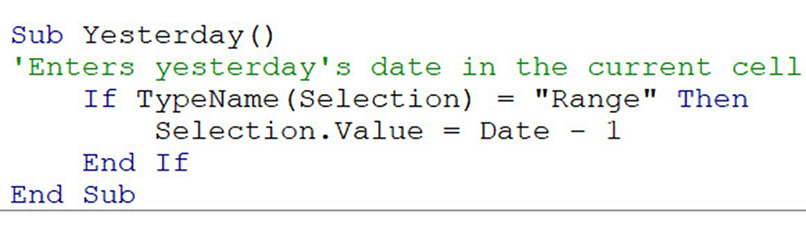
I often found myself entering yesterday’s date in a cell, so I created a macro to do it (Figure 3).
Explanation: The If and TypeName commands confirm a range is selected. Yesterday’s date is entered in the range. The Date command in VBA returns today’s date, deducting 1 returns yesterday’s date.
3. Red brackets format
This is a popular format that requires a custom number format. The first macro in Figure 4 applies the red brackets format to the selected range. The second macro applies black brackets. Choose the macro with your preferred format.
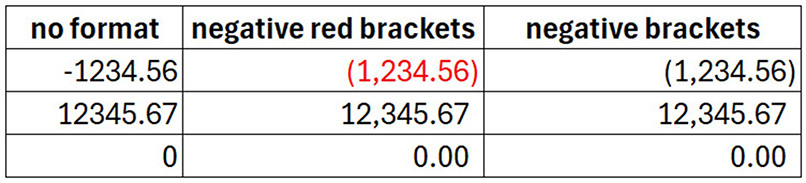
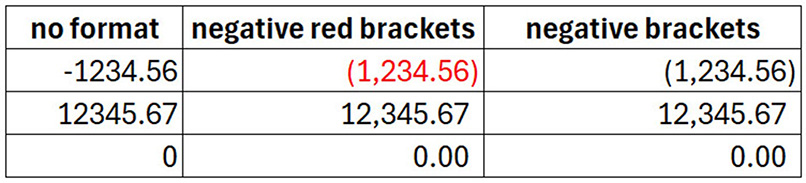
Explanation: The macro confirms a range is selected and applies the Custom Number Format to that range. Both these formats line up the decimal points — see Figure 5.
4. Delete blank rows
Power Query’s Achilles heel
Power Query’s biggest drawback is that if you already have data in an Excel table you must create a separate data table to fix the problems in the existing table. This means the data is in the file twice. The following three macros fix common data issues in-situ, something Power Query cannot do.
A common data task is to remove blank rows. This macro removes all the blank rows from the selected range. The whole row must be blank for it to be removed. See Figure 6.
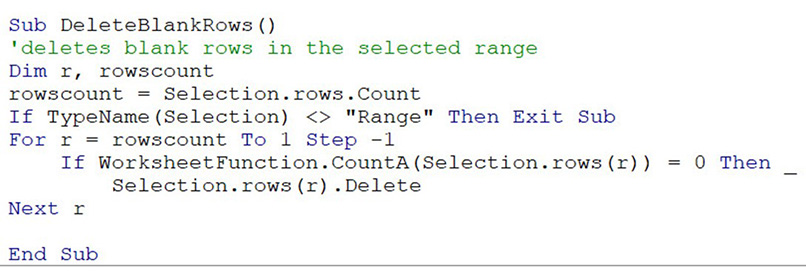
Explanation: The rowscount variable captures the number of rows in the selected range. The If and TypeName combination stops the macro if a range is not selected. The symbols <> mean not equal to. When deleting rows, you must start at the last row and work up. The r variable starts at the last row (rowscount) and reduces to 1 using the Step value of -1. The COUNTA function counts the cells with entries. If the cells counted equal zero, it means the row is empty and can safely be deleted.
5. Populate blank cells with zero
Populating blank cells with zeros can solve a few problems in Excel. The macro in Figure 7 enters a zero in each of the blank cells in the selected range in one click.
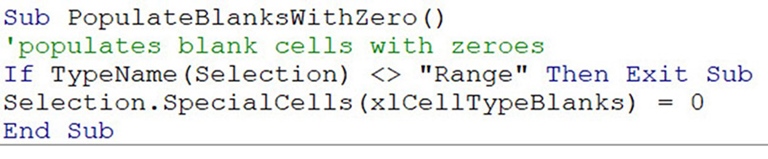
Explanation: The If and TypeName combination stops the macro if a range is not selected. The SpecialCells command is used to select the blanks cells in the range and enters a zero into each one.
6. Trimming spaces
Imported data can contain extra spaces. Removing leading and trailing spaces is a common requirement. Excel’s TRIM function removes leading and trailing spaces. VBA also has a Trim function.
The macro in Figure 8 can remove leading and trailing spaces in one click. It only works on entries, not formulas.
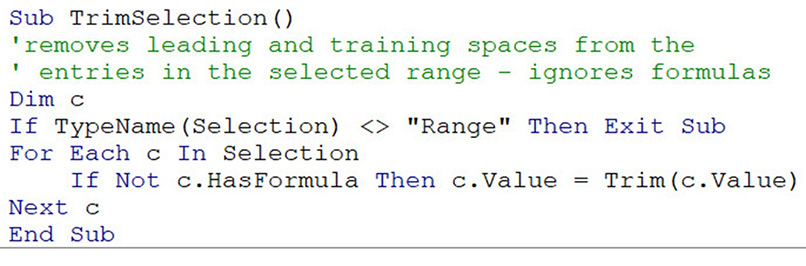
Explanation: The macro confirms a range is selected. It goes through each cell in the range. If the cell does not have a formula, it trims the entry.
Techniques
The techniques in these six short macros can be applied to other tasks and automate them to make you more productive in Excel.
Below are links to more articles on Excel macros, for further exploration.
- Excel tips: Three useful macros for accountants
- Excel tips: how to create macros that toggle
- How to use Excel's message box feature
- Excel tips: how to use Goal Seek
- Excel tips: how to handles formula errors using IFERROR
The companion video and Excel file go into more detail to demonstrate these techniques.