Welcome to "ExcelTips." My name is Neil Blackwood and in this video we're gonna be looking at Excel templates.
Now, templates work throughout Office, so you can create templates for Word, PowerPoint, and you've probably used a template in Outlook because that's how you create an out of office message. So let's see how they apply to Excel.
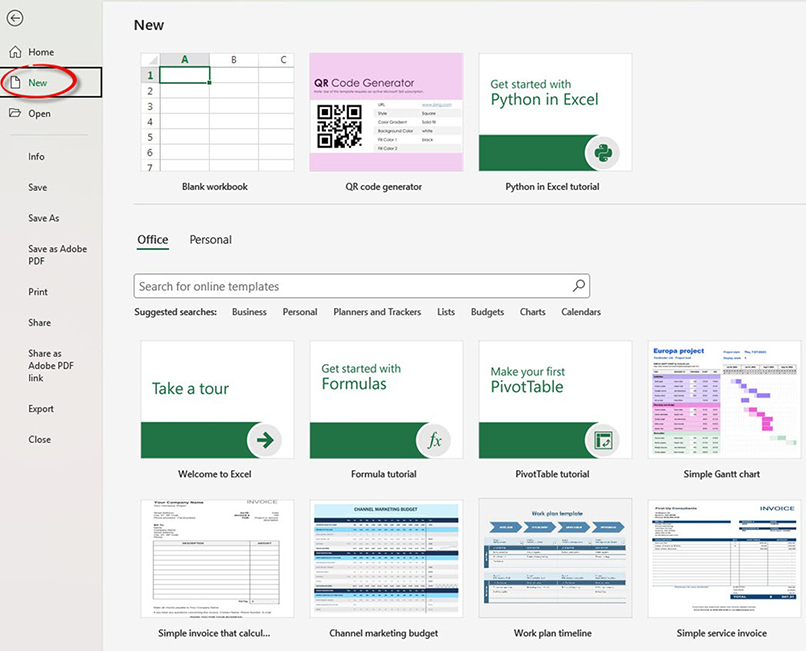
So to find out where they are in Excel, if you click the file option and then new, you have access to templates here. So these are the built-in ones. If you click the little pin icon, you can actually pin them to the list up the top. So if you have any templates that you use regularly, you can pin them to the top.
There's different sections here. So you can click on these and this will open up specific templates and you can see there's lots of them there. Feel free to check them out. And we can go back. At the moment, there are no personal templates, so we're gonna change that. So we'll come back to that one a little later and we'll see how we can create our own personal templates.
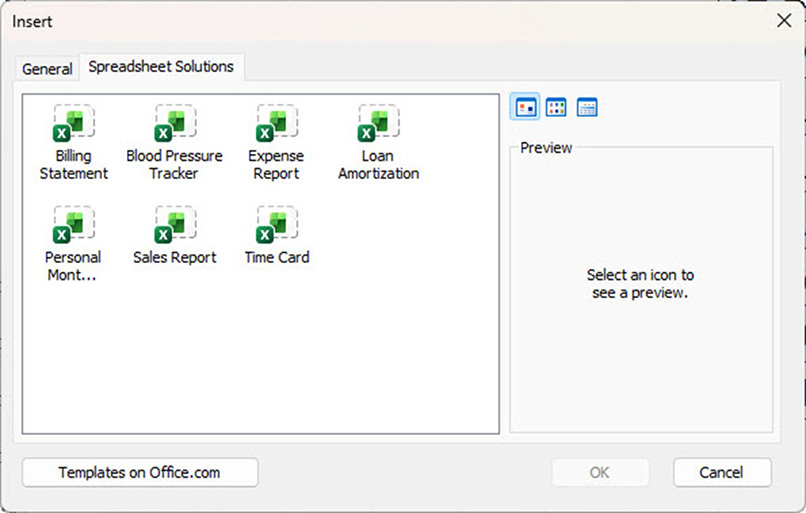
Okay, so they're template files. So let's go back, and if you want a template sheet, so what you can do is right click on one of the sheets and you go insert. And you can see templates here. So there's the standard worksheet, but you can also, for example, there's a QR generator and there's also spreadsheet solutions. So there's some different options there as well.
So they're templates for individual sheets in a file. You can also go to the templates on office.com, which I don't think is called office.com anymore, but that's the online version of Excel and the the rest of Office, but you can check those out as well.
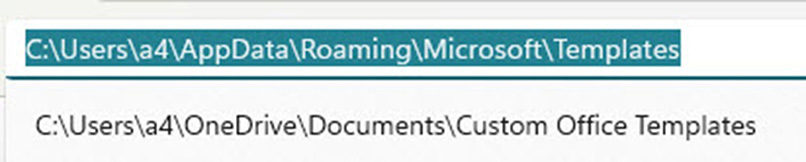
Okay, so that's the locations that you find them in Excel, in terms of where they're located on your system, let's have a look at that. So on my system, the Templates folder is under Users, a4, which is my username, AppData, Roaming, Microsoft and Templates.
And this has all of the templates in Office basically. So we've got Outlook, we've got a Word template, and we've also got that Excel QR code generator template that we saw listed earlier. And there's my out of office template.
So all of the templates are kept here. Now the other place that's important when it comes to templates is the XLSTART folder, which is in a similar location, but it's under Excel, and then XLSTART, all uppercase, any file you save into this folder will automatically open when Excel opens. Now the one that you are looking at here is called personal, and this is for your personal macros. So I use macros a lot. And the next article actually will be on macros.
And so this holds all of my personal macros, which I can run at any time. Now this is also the location to put in a customised blank file and a customised blank sheet. So you can create your own blank templates and you save them to this XLSTART folder and they override Excel standard file and standard sheet templates. So you can customise them and I'll show you some of the things that you might want to customise.
You can also set up your own Templates folder, which I've done, I use Dropbox. So I've got a Templates folder in my Dropbox. Currently it's empty, but we will put something in that a little later and you'll see that appear as well. So you can have your own Templates folder set up in, and tell Excel where that is, I'll show you where you do that in a minute. Okay, so that's all of the folders.
Now, when you're creating a template, you can create templates for things like journals, loan schedules, maybe budget submissions, leave requests, all those type of things where you might have a standard layout that you want people to populate. So templates solve a problem in Excel in that sometimes people will take a file and they'll open the file, they'll make some changes, and then they'll save as.
So maybe you take February's file, you make some changes, and you save it as March. That's okay, but one of the problems you can face is that you might hit save before you have renamed it. And so you're actually overwriting the original file.
Templates get around that because templates, you can't overwrite the template, when you open up a template, Excel forces you to rename it. I'll also show you a little technique that can assist if you need to use another file that isn't a template, but you want to use it like a template, I'll show you a little technique at the end where you can, how you can do that.
Now, some of the things you might want to capture in your blank file. So when you're creating a template for one of your blank files, you might want to capture things like a standardised header and footer, which you do through the print, so let's do that. So let's say we want to create a standardised header and footer, the easy way to access the header and the footer in Excel is to click on this little icon on the bottom right hand corner. And this allows you to get directly into the header and footer.
You might not have tried this, it's called a view, and it makes Excel look like Word. And so you can get directly into the header, and when you click up here, you actually get a header and footer tab on your ribbon. And so we can grab a, let's say a standard header, let's say we want to put the folder and file name in there and let's scroll down and grab, go into the footer and let's put a standardised footer in there. Let's do, let's try this one.
So that's gonna put my name, the page number, and the date. So let's say that that's my standardised header and footer, so I've added that into the sheet. When you come back to Excel after using that view, you do get the dotted lines, which that's telling you sort of where the page breaks are.
Okay, so I've done that with Sheet 1. I haven't done it with Sheet 2, but just remember that, okay, so Sheet 1 has that setting, sheet two doesn't have that setting. So if I go here, you'll see that there's nothing there. So just a heads up on that.
Now what I'm also gonna capture is a format. Now, in the old days, this used to be a standard format, but for whatever reason it's been dropped from Excel and it's actually fairly popular with accountants. So it's the red brackets format, so it shows negatives as red and brackets. Now if you don't want to use the red, there's also a black brackets version. So these are what are called custom number formats.
Now if I open up a blank file here, I'm just gonna show you the format cells option, control + 1 opens up format cells and it's under custom. And if I scroll down, you'll notice there's no brackets in here. There's some red minuses, but there's no brackets formats here, okay? So that's in the, at the moment, the default file template. Okay, so there's no brackets. Now I'll show you where they appear when you have them available.
So I have applied this format in this file already. So if I go control + 1, you'll see that down the bottom of the list you can see those bracket formats where one's a red and one's just a standard colour. Okay, so these are available. So I think I just changed that one. I'll just go change that one back to that one. There we go. And so the beauty with this is it does line up the decimal point.
So you gotta be careful when you create these brackets format that the decimals do line up. Okay, so in this file we have that particular format, and you can capture any format that you use commonly, you can capture it in a file. Something else you might want to capture is your logo. So you might have a specific logo that you want to use. So I've got the "ExcelTips" logo here as an image. I've also saved it as into the cell.
So this is a new feature where you can capture an image in a cell. I'll show you how, you just copy it, right click, and it's this option on the end, paste picture in cell, and that puts it inside the cell. So as you change the size of the cell, the image will increase. I'll show you a little tip here as well. You can name the cell. So let's say I want to call this, logo. If I go into the name box and just type logo and hit enter, I can now access that image throughout the file just by typing =logo into another sheet.
So let's go here, I can type =logo, hit enter, and as I make the sheet bigger, as I make the cell bigger, then you can see the logo as well. So a little tip if you want to use logos or images, or you can just, as I said, I've just pasted the logo in here as an image, which is different to putting it inside the cell. Okay, so there are few of the things that you might want to capture in the template. You've got your print settings, you've got some formats, and in this case we've got the logo.
So let's say we want to capture this file as the default file when we create a blank file. So here's how we do it. We press F12 to save as. We wanna save this as a Excel template. When you select the Excel template file type, Excel will automatically default to either the system template folder or your personal template folder. The one we're looking at the moment is my personal template folder. I'll show you how to set that folder soon. I don't want to go there. I actually want to go to that XLSTART.
Now I have captured that as a shortcut here. Okay, so I'm now in my XLSTART folder, and so I'm gonna save this. Now you need to save it as a special name, it's just a book. So capital B-o-o-k, and just save it as the word, Book as an Excel template into the XLSTART folder, and save. Now I'm gonna create a sheet as well. So what I'm gonna do is I'm gonna delete these, and delete that. So this is a standard sheet.
So this one holds the format and the print settings. Let's have a look, just double check. So this one has the print settings that we wanted. Okay, so now I'm gonna do the same thing, save as, it's a single sheet, and I'm in XLSTART so it's remembered that, so that's really good. And I'm gonna save this as sheet, and save. Okay, so I'm gonna close Excel and reopen it. And so when I do that, all of those settings should be captured, okay?
So I have just reopened Excel and the default file for a file has displayed, so this is, it's opened up as Book1, but because I saved it on this sheet, it's opened on this sheet. But you'll notice that I've got my Sheet 1, my Sheet 2, my format, and my logo, so that's my default book. So if I open up another blank book, you'll notice, there we go, that I now have Book2, and I have all of those settings.
If I want to insert another sheet, what I can do is click on the little plus sign, which is on the right of the tabs, and now I check out, let's check out that the printing settings. And there we go so you can see I've got my default print settings in that new sheet. And we should also obviously have that format. The format will be here. So if I go and check out the format, control +1, my formats are listed down the bottom.
So that's how we create the blank sheets and the blank file. We save the file as Book, as a template, and we save the sheet as Sheet, into the XLSTART folder. So if you want to create a customised template, so for a specific task, let's say a loan schedule, what you can do is you can save it to the Templates folder, the general Templates folder.
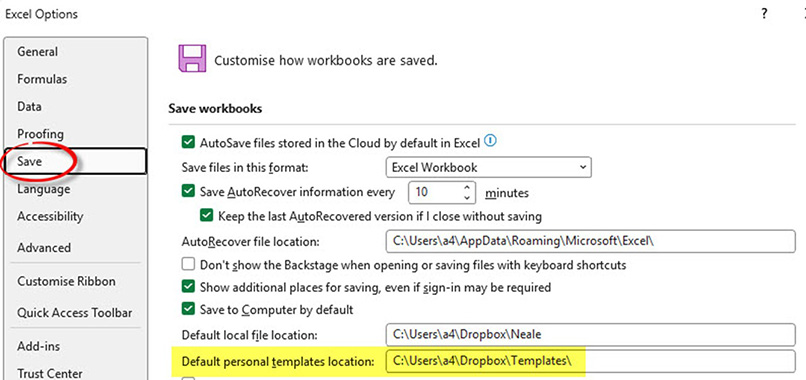
Now I've created a custom folder, so I'll show you how to do that, press in sequence, alt + T + O + S, don't hold them down, this opens up the Excel options under the save section. And what I've done here is I've got a default personal templates location.
So it's under my Dropbox and it's just called Templates. So if I click okay on that, so that's specific for me. And so what I'm gonna do is, this is that folder, Dropbox templates. I'm gonna copy that and paste it in here. So now I've got the loan schedule template saved in to my personal Templates folder on Dropbox.
Let's see what happens now when I go file and I go new, and when I go personal, you'll see that that loan schedule is there and if I wanted to, I could pin it to the top section. So if I click on that, that's gonna open up this loan schedule, which I had created earlier.
And I think I've used this example in a previous article. So that's an example where you might have a customised file that you use for a specific task, and you want to make that easy to open. If I try and save this, so when I click save, you'll notice that I have to specify a new name for the file. So because it's a template, it doesn't let you overwrite the actual file, okay? So I'll close that.
Now, something you might wanna consider if you're in an organisation, you might want to use the same templates throughout the organisation. So you might need to talk to your IT section. And they might be able to set up a folder on a shared drive, for example, that you could use to hold corporate or organisational templates that you might want to use, which can standardise the use of the files throughout your organisation.
Now, I did wanna show you a little technique where if you want to use a file like a template, that, you can do. So if you click on the file ribbon tab, and I've got a version here, v2. So this is not a template, it's actually a normal Excel file. So you can see it's got the xlsx on the end. If I right click that, I get the option to open a copy. And so this was called v2, but when I open a copy, it'll actually be v21 at the top here.
So now when I hit save, it'll use that extra one on the end here as the name, but I can then rename it so I can't overwrite it. So if you are using a file and you're gonna use it like a template, it's a good idea to right click on it and just use that, open a copy. So right click, open a copy, and that stops you overwriting the file.
So templates in Excel can save you a lot of effort in applying different formats, different print settings, and you can capture them so you don't need to keep redoing them, and you can also capture images, formats, those sort of things as well, so that they're available in your files. I hope you found this useful. Thanks for watching.