Loading component...
At a glance
The term regex stands for REGular EXpressions and refers to using codes to identify patterns within text. For example, to extract an email address from a text string.
The concept has been used in computer programming for decades and has now arrived in Excel.
Regex functions provide more flexibility when working with text. Excel’s existing functions TEXTBEFORE, TEXTAFTER and TEXTSPLIT, work well with structured text, and were covered in this previous article.
The three new regex functions are designed to handle less structured text. Two existing functions have also been updated to allow the use of regex patterns.
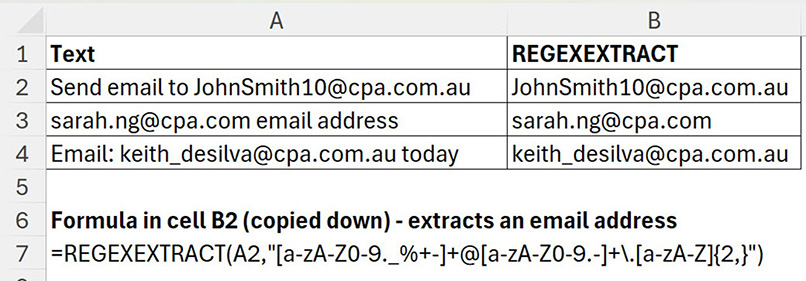
Figure 1 shows the new REGEXEXTRACT function extracting email addresses from different text strings.
New Regex Functions
REGEXTEST function
This function searches for a pattern in text and returns TRUE if the pattern is found, FALSE if it isn’t.
REGEXEXTRACT function
This function (used in Figure 1) extracts text that matches a pattern.
REGEXREPLACE function
This function replaces text that matches a pattern.
These functions use a similar syntax and share some arguments.
Syntaxes
REGEXTEST(text,pattern,[case_sensitivity])
REGEXEXTRACT(text,pattern, [return_mode], [case_sensitivity])
REGEXREPLACE(text,pattern,replacement,[occurrence],[case_sensitivity])
text — usually a cell or range reference that contains the text to be reviewed.
pattern — a text string within quotation marks that defines the pattern to be search for. There are numerous codes, characters and symbols used to build a pattern. See the Codes for Patterns section below.
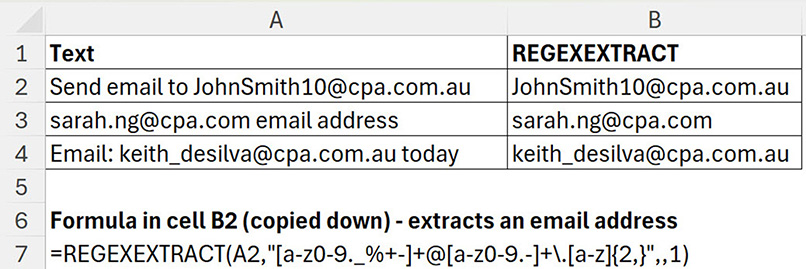
case_sensitivity — optional — if omitted, the default is 0 which selects a case-sensitive search. Use 1 for a case-insensitive search, which can shorten some patterns. Only upper- or lower-case letters need to be included, not both. Figure 2 has an example.
return_mode — optional — if omitted, the default is 0 which selects the first match. 1 means all matches and 2 means capture groups of first match.
replacement — the replacement text needs to be within quotation marks.
occurrence — optional — a number representing the occurrence to replace. If omitted, the default is 1, the first occurrence. Use -1 for the last occurrence.
Codes for Patterns
The codes and combinations in Table 1 are used to build patterns. The list is not comprehensive.
| Code | Description |
|---|---|
| Characters | |
| [a-z] | Matches the 26 lower-case letters |
| [A-Z] | Matches the 26 upper-case letters |
| [0-9] | Matches any numeric digit |
| \d | Matches any numeric digit |
| \w | Matches a word (letters, digits, underscore) |
| \b | Word boundary, white space or the start or end of the text |
| \s | Matches a white space character — e.g. a space (see note below) |
| \S | Matches non-white space characters |
| Quantifiers | |
| * | Zero or more of the preceding character(s) |
| + | One or more of the preceding character(s) |
| ? | Zero or one of the preceding character(s) |
| {n} | Preceding character(s) appears exactly n times |
| {n,} | Preceding character(s) appears at least n times |
| {n,m} | Preceding character(s) appears between n and m times |
| Anchors (positioning) | |
| ^ | Start of a string |
| $ | End of a string |
What is white space?
The main white space character is a space. But white space also includes tabs, new lines, carriage returns and form feeds.
| Description | Regex pattern |
|---|---|
| Word | [a-zA-Z]+ |
| Last word | [a-zA-Z]+(?!.*[a-zA-Z]) |
| Whole number | \d+ |
| Last whole number | (\d+)(?!.*\d) |
| Decimal or whole number | \d+(\.\d+)?|\.\d+ |
| Last decimal or whole number | (\d+(\.\d+)?|\.\d+)(?!.*(\d+(\.\d+)?|\.\d+)) |
| Email address | [a-zA-Z0-9._%+-]+@[a-zA-Z0-9.-]+\.[a-zA-Z]{2,} |
| Date | (0?[1-9]|[12][0-9]|3[01])\/(0?[1-9]|1[0,1,2])\/(19|20)?\d{2} |
Case sensitive
All three regex functions default to using a case-sensitive search. Turning off case sensitivity can shorten the pattern for text. Figure 2 shows an example with the email pattern from Figure 1. The three A-Z entries have been removed.
Regex function examples
Figure 3 shows the REGEXEXTRACT function using various patterns to extract from various text strings.
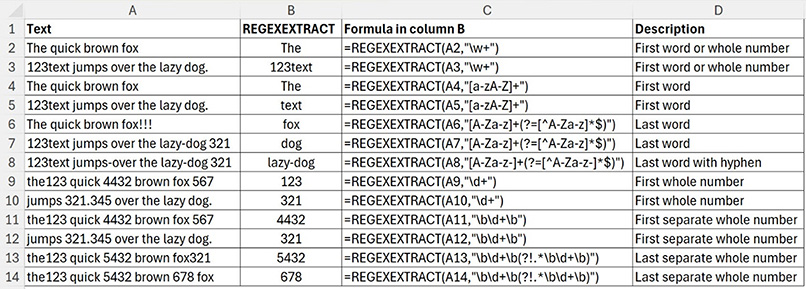
The first thing to note is that it is easier to identify the first instance of something than the last instance.
Row 3 shows the \w command does not differentiate between letters and numbers.
Rows 4 and 5 work with letters only.
Row 7 ignores the hyphen and extracts dog, not lazy-dog.
Row 8 has added in the hyphen to the pattern, and it captures the last hyphenated word.
The command \d identifies numbers, but it does not monitor if the number is attached to text — see row 9.
To identify separate numbers (row 11), include the /b command at the start and end. The code \b identifies a break.
Note: handling all types of numbers can become complex. Negatives, decimal numbers and numbers using the comma separator are more difficult to identify.
AI resources
Most AI systems can assist in creating regex patterns, but may require a few iterations for more complex patterns.
Since regex patterns have been used for decades, there are also numerous websites that showcase patterns.
Testing
Patterns need to be tested with indicative samples of the expected text. Expect a few iterations before settling on the final pattern. Be aware that leading and trailing spaces can impact the effectiveness of some patterns. Consider using the TRIM function, which removes leading and trailing spaces, with the source cell to keep patterns simpler.
Updated functions
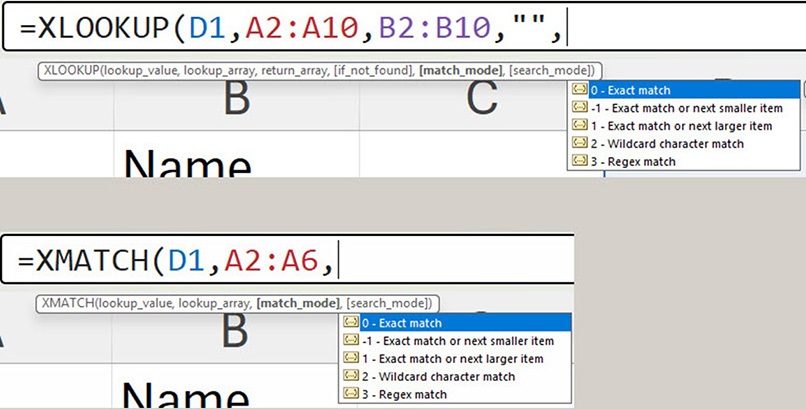
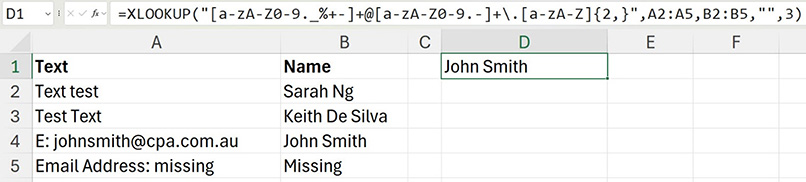
The XLOOKUP and XMATCH functions have had an extra option added to their match_mode argument. 3 now represents at regex match and requires a regex pattern as the first argument. See Figure 4.
In Figure 5, the XLOOKUP uses the email pattern to return the name from column B next to the first email found in column A.
Common patterns
Consider creating a table of useful patterns. This will save time by avoiding creating the patterns from scratch, which typically requires some trial and error or searching.
Combining regex patterns with existing functions
The listing in Figure 6 has emails contained in different text strings. The goal is to extract the emails and create a clickable hyperlink. This will be demonstrated over three steps.
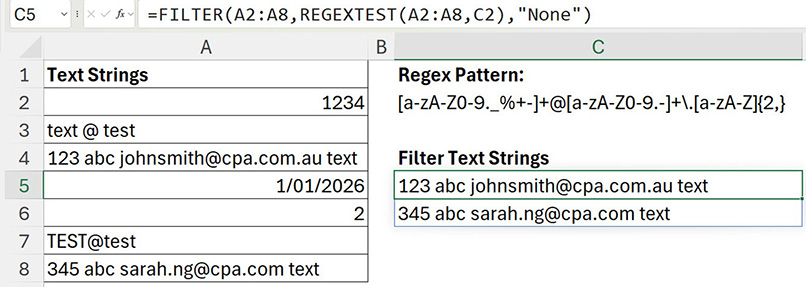
The FILTER function can be used with the REGEXTEST function to identify the cells containing an email — see cell C5 in Figure 6. The pattern in cell C2 shortens the formula.
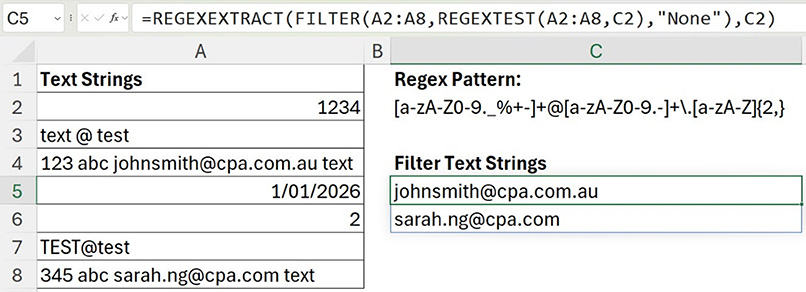
The REGEXEXTRACT function can then isolate the emails. See Figure 7.
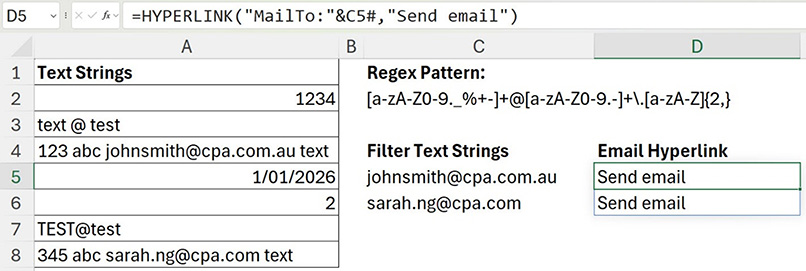
The HYPERLINK function can convert text into a clickable hyperlink. To convert an email address into a clickable link, the text MailTo: needs to be included in front of the email address — see cell D5 in Figure 8. Clicking cell D5 or D6 will create an email in Outlook to the email address in column C.
The inclusion of the regex functions provides more flexibility for Excel formulas to work better with unstructured text.
The companion video and Excel file go into more detail to demonstrate these techniques.