Loading component...
At a glance
Artificial intelligence (AI) systems continue to develop rapidly.
Microsoft’s AI Copilot requires a separate subscription in addition to Excel/Microsoft 365. The subscription also includes Copilot for Word, PowerPoint and Outlook.
Copilot in Excel is not just another AI chat screen. Used correctly, it can help design worksheets, write formulas, create instructions, suggest improvements and automate repetitive tasks. Used poorly, it can produce confident but unreliable outputs.
Recent improvements to Copilot in Excel have focused on greater customisation options to control how you inform Copilot of your rules, requirements and instructions.
Users should follow their organisation’s policies on confidential, client and commercially sensitive data before using any AI features.
Evolving AI interface

AI is changing faster than previous computer-based systems. Some of the screens and options that follow may vary.
Be prepared for new options, revised terminology and other changes.
If you have Excel Copilot, you will see the Copilot icon in the bottom-right corner of the Excel screen — Figure 1.
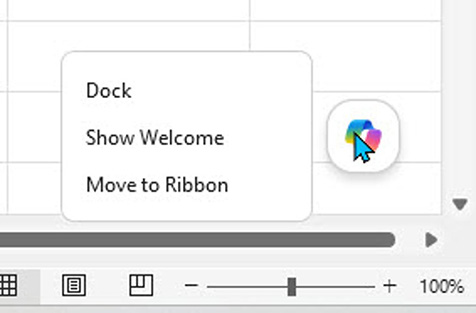
Users can right-click the icon and choose to Dock (hide it) or Move to Ribbon — see Figure 2.
Different modes
Copilot currently has three modes. See Figure 3.
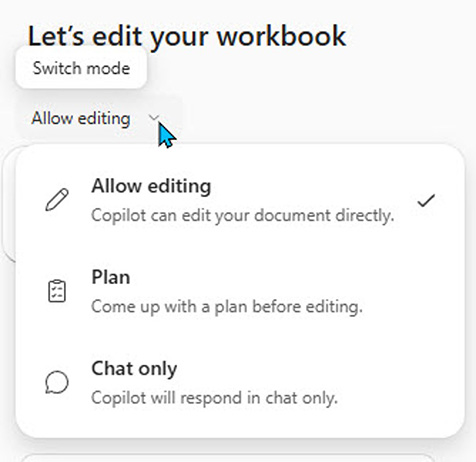
- Allow editing: This allows Copilot to create a fully functioning formatted sheet or sheets from scratch based on user requirements, rules and instructions. It may ask for clarification on some features before starting. It can also make changes to an existing file. Note the limitations below.
- Plan: This creates a design for a solution based on your prompt. The plan can be edited before going ahead.
- Chat only: This is a typical chat-based prompt with a question and an answer.
Limitations
At the time of writing, Copilot in Excel cannot edit, access or “see” some parts of Excel. This mainly impacts:
- VBA code
- Power Query M code
- Protection and passwords.
Personalisation
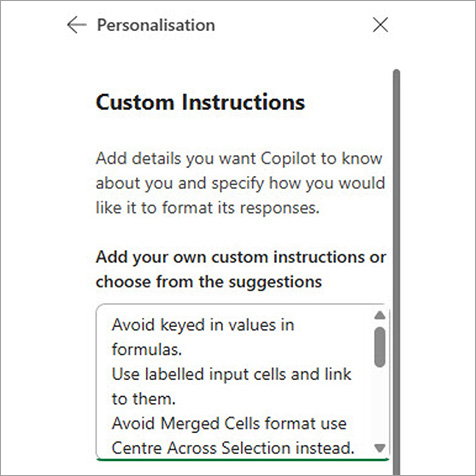
Copilot has a section that allows professionals to provide information about themselves and their role as well as specifying rules for Excel that apply all the time. To set this up, change the mode to Chat only.
Click the ellipsis (three dots) left of the X used to close the task pane. Select Settings, then Personalisation. Turn on Custom Instructions and click Edit Instructions. My current Custom Instructions are shown in Figure 4.
Rules
A recent update to Copilot is a sheet named .Rules. This specially named sheet holds the rules that Copilot follows when building solutions in the file. The rules are listed in column A of the .Rules sheet.
Formulas are allowed in column A. This means text-based formulas can be used to create flexible rules based on input cells in the sheet or other parts of the file.
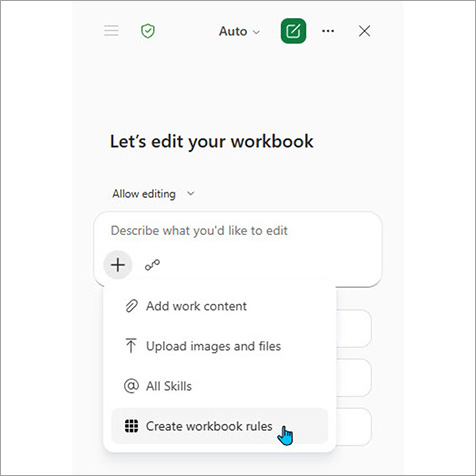
Copilot will create the .Rules sheet, which includes examples. Click the plus sign in Copilot — see Figure 5.
The .Rules sheet generated is shown in Figure 6.
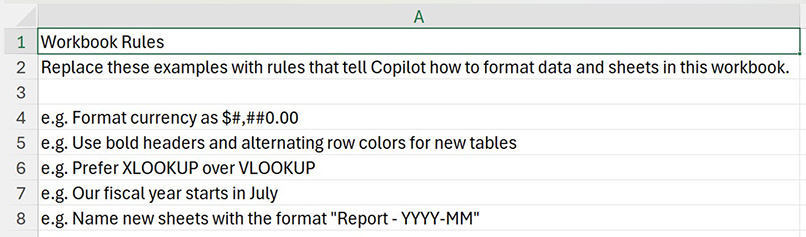
The .Rules sheet reduces the number of instructions required in each Copilot prompt.
Using a standard .Rules sheet throughout an organisation could ensure consistent guidelines and formatting. The top section of the .Rules sheet could hold organisational guidelines. The bottom section could hold specific requirements for the file involved.
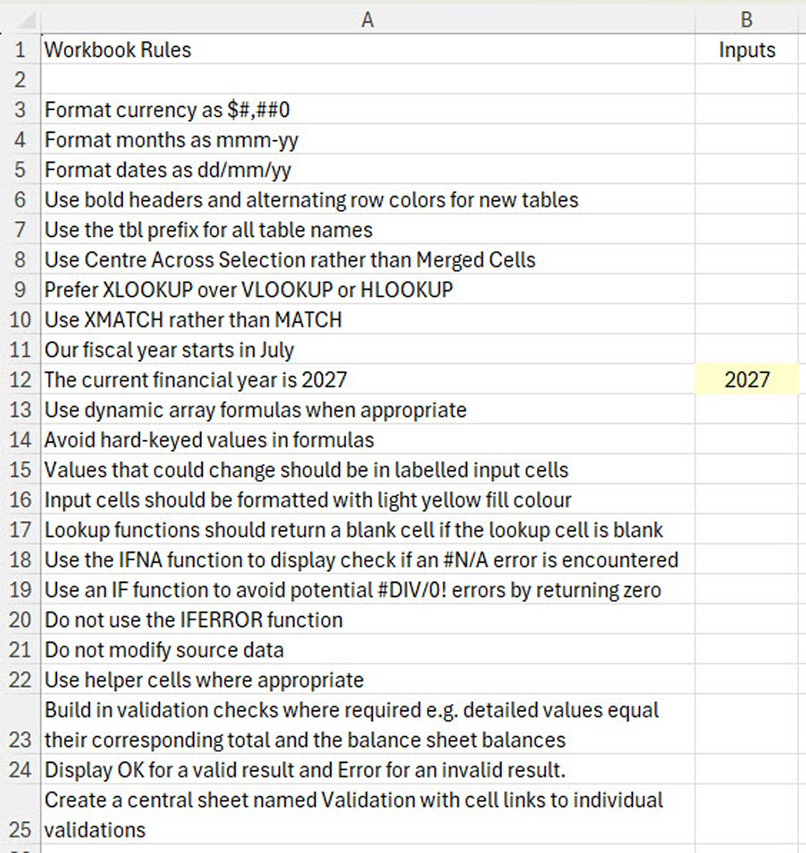
Some example rules are listed in Figure 7.
Cell A12 has a simple formula that updates based on the value in cell B12. You can ask Copilot if the rules are specific enough.
AI as an Excel assistant
Professionals can use Copilot as their Excel assistant. It does not replace the need for Excel skills — the better you are with Excel, the more likely you will get the most out of Copilot. Also having Excel skills will allow you to quickly review formulas and perform checks to ensure the results are fit for purpose.
Copilot is great for creating a version 1 based on your requirements and instructions. It may take a few minutes to create a structure that would take a professional hours. Changes can be made just as fast.
Do not assume Copilot has followed the instructions. Testing and reviewing are more important with Copilot-generated content.
Consider instructing Copilot to use “helper cells” where necessary. Helper cells are cells and ranges that make the final formulas shorter and easier to understand. Instead of one long complex formula, the calculation may be split across multiple cells.
I recommend instructing Copilot to build in validation checks where necessary. It can also be useful to request Copilot create a centralised validation sheet that links to each of the individual validations in the other sheets. This makes reviewing all the validations easier.
Iterations
Excel has always been a great prototyping platform. “Proof of concept” models can be built and tested before building the final model, either in Excel or another platform.
Copilot can speed-up this iteration cycle. Copilot can also suggest improvements along the way. Rebuilding an old model from scratch is less of a challenge with the speed at which Copilot can create and amend solutions.
Testing and reviewing
Copilot in Excel will continue to improve. It speeds up development and investigative work in Excel. It is worth treating Copilot in Excel like a graduate accountant who has just joined the business. Give it lots of guidance and detailed instructions. Its output also needs to be reviewed and carefully validated before being used or distributed.
Suggestions for using Copilot in Excel
AI is great at understanding meaning and quickly interpreting text and data. That makes it great for:
- writing an Instructions sheet (at least a first draft)
- finding outliers, trends or relationships in data
- explaining how and why a formula or function works
- explaining how macro code works or does not work
- writing the narration for the monthly report (at least a first draft).
AI is not as strong on calculations. Luckily, that is where Excel is so powerful. Depending on the interface and context, Copilot can assist by generating or explaining formulas, creating custom functions, PivotTables, macro code, Python in Excel code and Power Query M code. Due to current Copilot limitations, some of these may need to be copied and pasted, reviewed or implemented manually.
AI is ideal for ad-hoc reports generated from a prompt. For repeatable and reliable calculations use Excel.
The opportunity is not to replace Excel skills or professional judgement, but to use Copilot to create, document and provide Excel solutions faster and more consistently.
The companion video and Excel file go into more detail to demonstrate these techniques.